
Qingwave Studio: turn a script into a motion comic
What Qingwave Studio is, what it can do today, and the workflow it's built around — from script to shotlist to a finished episode.
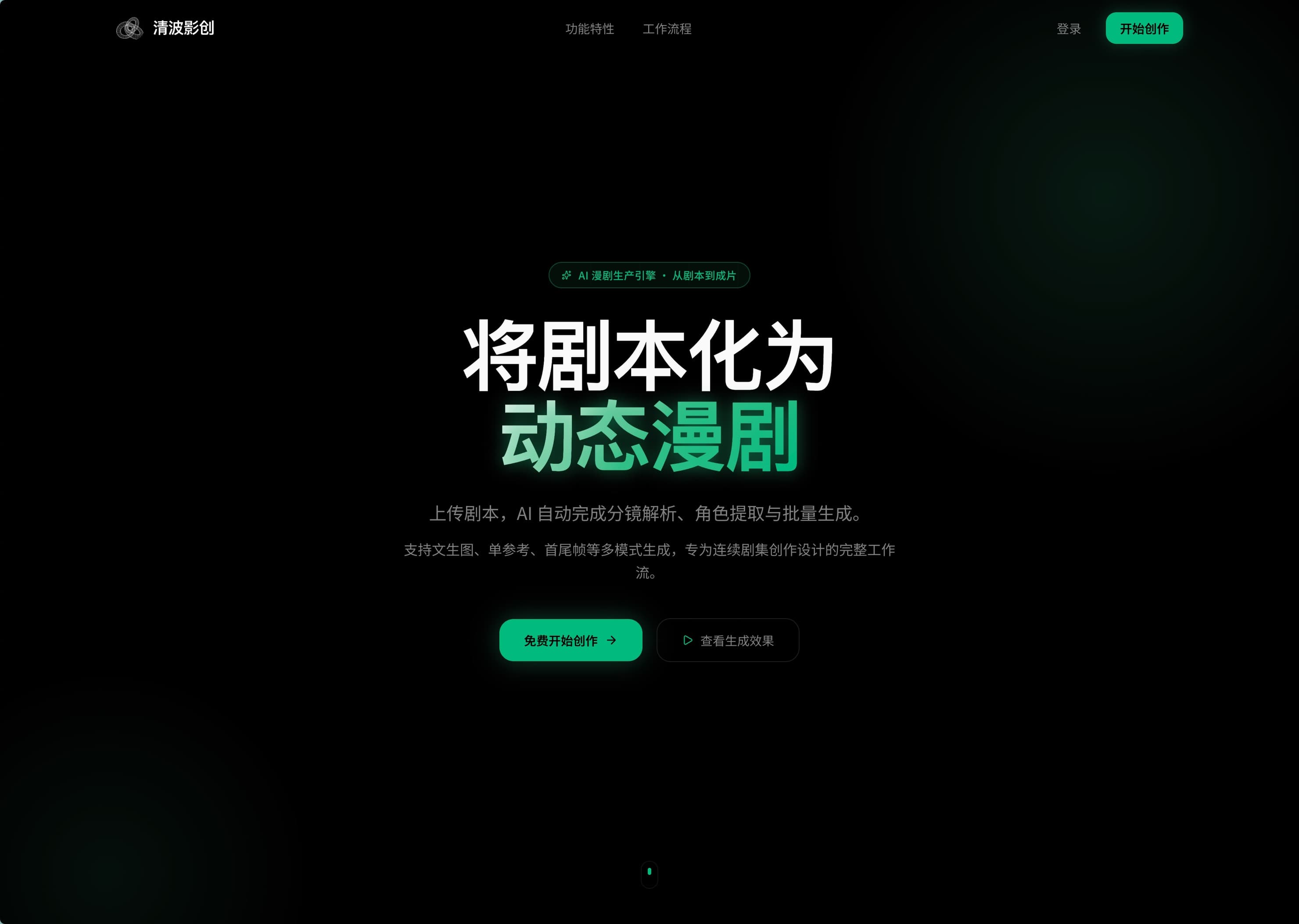
Qingwave Studio is our AI motion-comic production platform. You bring a script. Studio turns it into shots, keeps your characters and scenes consistent, and lets you iterate frame by frame until the episode is ready to publish.
This post is a quick tour: what's in it today, how it's organized, and what a real project looks like inside it.
The workflow, end to end
Studio doesn't start at "type a prompt". It starts at the script. The first thing you do in a new project is paste in a scene or upload a screenplay file.
From the script, Studio derives three lists that travel with the entire project:
- Shots — broken down from the script. Each shot has who's in frame, what they're doing, environment, and an inferred camera direction.
- Characters — every named person in the script becomes an entry. Each character has a reference appearance you can lock so the face doesn't drift between shots.
- Scenes — every distinct location becomes an entry, with its own reference lock for lighting, color, and layout.
You can edit, add, and remove items in all three lists at any point. The lists are how Studio keeps a long story coherent — without them, "shot 14" and "shot 53" wouldn't know they share a character named Mei.
Generating a shot
Each shot in Studio is a unit you control independently:
- Pick a mode — text-to-image for an establishing shot, single-reference for a close-up, first-frame / last-frame for a movement beat.
- Bring in character locks and scene locks so the same face and the same room stay consistent.
- Adjust the prompt just for this shot. The other shots keep what they already generated.
- Generate, preview, accept, or re-roll — only the shot you're working on changes.
The mental model is "decide what this shot should be", not "spin the wheel until something pretty appears". When the locks are stable, most shots come out usable on first try.
Batch generation
Once a project's character / scene / entity locks are stable, you can queue up dozens of shots at once. Submit shot 20 through shot 60, walk away, come back to a coherent block. Each shot bills only when it actually completes — failures don't charge.
This is the part that turns Studio from "an image tool" into "a production pipeline". You're paying for the setup of locks once, then most of the heavy lifting is batch work.
How it bills
Studio runs on the Studio sub-wallet inside your Qingwave account. See Two-layer wallet, on purpose for why it's structured this way. Briefly:
- Daily free credits — reset at 00:00. Use them first.
- Monthly plan credits — included with a Studio plan. Expire at end of period if not used.
- Permanent credits — bought à la carte. Never expire.
Drain order is daily → monthly → permanent, so the soonest-to-expire bucket gets used first. The master wallet pays for plans — it never gets debited by usage.
What's solid today, what's still cooking
Solid:
- Script-to-shotlist auto-breakdown for most narrative scripts.
- Character / scene / entity locking across shots.
- All four shot modes (T2I, single-reference, first-frame, last-frame).
- Batch generation with per-shot retry.
Still cooking:
- Better pacing inference — when the auto-shotlist is too literal, we're tuning how it reads beat structure.
- Voice on top of frames — TTS dialogue paired with generated frames so episodes play as motion comics. Internal tests only.
- Branching scenes — for projects that fork into multiple story paths.
Try it
You can open Studio from your Qingwave Console under Products, or directly from the Products page on this site. The daily free quota covers a small project — enough to feel out whether Studio fits your workflow before you commit to a plan.